Overview
The self-hosted path has two parts:- Set up your NLE server — pull and run the pre-built Docker image on any always-on machine
- Flash your thermostat — run the same GUI installer as the hosted path, then select “Self-Hosted” in the wizard
Part 1: Set Up Your NLE Server
Choose the deployment option that matches your setup:Option A — Home Assistant Add-on
Step-by-step:-
Add the repository to Home Assistant:
 Or manually: Settings → Add-ons → Add-on Store → three-dot menu → Repositories → paste:
- Find NoLongerEvil HomeAssistant in the Add-on Store and click Install
-
⚠️ Before starting: configure
api_originfirst — Go to the Configuration tab of the add-on. Changeapi_originfrom the default to your Home Assistant machine’s actual LAN IP address (e.g.http://192.168.1.100:9543— replace192.168.1.100with your HA machine’s IP)
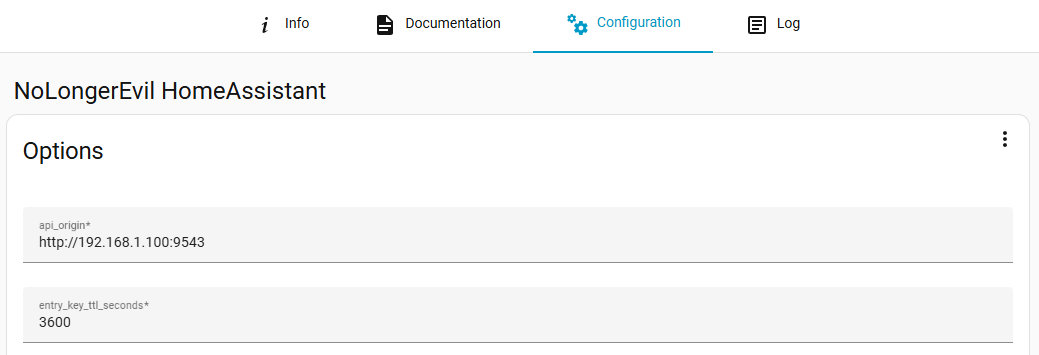
- Click Save, then go to the Info tab at the top and click Start
- Enable Start on boot and Watchdog (auto-restart on crash)
- (Optional) Enable Auto update and Show in sidebar for easy dashboard access
Network ports & dashboard access (Optional)
Network ports & dashboard access (Optional)
| Port | Purpose |
|---|---|
9543 (host) → 8000 (container) | Nest device communication — this is what you enter as the server address |
8082 | Control API + Web UI (Ingress/sidebar only by default) |
http://[HA-IP]:8082): Settings → Add-ons → No Longer Evil → Configuration → Network → assign a host port to container port 8082.- The installer scans the LAN for a running NLE server via the
/infoendpoint - It will detect the add-on at port
9543 - Select Self-Hosted in the wizard and confirm the detected address (
http://[HA-IP]:9543)
Option B — Standalone Docker
Option C — Docker Compose
docker-compose.yml — set API_ORIGIN to your LAN IP, then:
| Variable | Required | Default | Description |
|---|---|---|---|
API_ORIGIN | ✅ Yes | http://localhost | LAN IP:port devices connect to (e.g., http://192.168.1.50:8000). Must be an IP, not a hostname. |
SERVER_PORT | Optional | 8000 | Thermostat device API port (inside container) |
CONTROL_PORT | Optional | 8082 | Dashboard/control API port (inside container) |
REQUIRE_DEVICE_PAIRING | Optional | false | If true, require 7-char pairing code before device access |
ENTRY_KEY_TTL_SECONDS | Optional | 3600 | Entry key validity in seconds |
MQTT_HOST | Optional | (empty) | MQTT broker IP — enables Home Assistant auto-discovery |
MQTT_PORT | Optional | 1883 | MQTT broker port |
MQTT_USER / MQTT_PASSWORD | Optional | (empty) | MQTT credentials |
MQTT_TOPIC_PREFIX | Optional | nolongerevil | MQTT topic prefix |
MQTT_DISCOVERY_PREFIX | Optional | homeassistant | HA MQTT discovery prefix |
DEBUG_LOGGING | Optional | false | Set true for verbose logs |
DEBUG_LOGS_DIR | Optional | ./data/debug-logs | Debug log output directory |
STORE_DEVICE_LOGS | Optional | (disabled) | Store raw device communication logs to disk |
SQLITE3_DB_PATH | Optional | /app/data/database.sqlite | SQLite database path |
CERT_DIR | Optional | (disabled) | Path to TLS certificates for HTTPS |
WEATHER_CACHE_TTL_MS | Optional | 600000 | Weather cache duration in ms |
MAX_SUBSCRIPTIONS_PER_DEVICE | Optional | 100 | Max long-poll subscriptions per device |
SUSPEND_TIME_MAX | Optional | 600 | Device sleep before fallback wake (seconds) |
DEFER_DEVICE_WINDOW | Optional | 15 | Delay before device PUT after local changes (seconds) |
DISABLE_DEFER_WINDOW | Optional | 60 | Post-push defer disable window (seconds) |
Option D — NAS Platforms
Most NAS platforms should be supported as long as they can run a Docker container. The steps below cover the most common platforms — if yours isn’t listed, refer to Option B (Standalone Docker) as a general guide.
Image: ghcr.io/codykociemba/nolongerevil-selfhosted:latest
- Unraid
- TrueNAS
- Synology
- Portainer
- Open the Docker tab in Unraid UI
- Click Add Container
- Set Repository to:
ghcr.io/codykociemba/nolongerevil-selfhosted:latest - Add Port Mappings:
8000→8000(API)8082→8082(Control)
- Add Path: Container path
/data→ Host path/mnt/user/appdata/nolongerevil - Add Variable:
API_ORIGIN=http://[UNRAID-IP]:8000 - Click Apply
Option E — Python Direct
For users who don’t have Docker, or developers working on the NLE server codebase. Requires Python 3.11+.This runs the same Python server that’s packaged inside the Docker image. Use this if Docker isn’t available, or if you’re contributing to the server codebase and want to run it directly during development.
Part 2: Flash and Configure via GUI Installer
Platform requirements — read before downloading:| Platform | Download |
|---|---|
| macOS (Intel x64) | nolongerevil-macos-x64.zip |
| macOS (Apple Silicon M1/M2/M3/M4) | nolongerevil-macos-arm64.zip |
| Linux (x64) | nolongerevil-linux-appimage.zip |
| Windows | ❌ Not supported |
Step 1: Enter DFU Mode and Flash
Follow the same DFU procedure as the hosted installation — see Step 3 of the hosted installation guide for the full Gen 1 / Gen 2 instructions. Once flashing completes you will see this screen: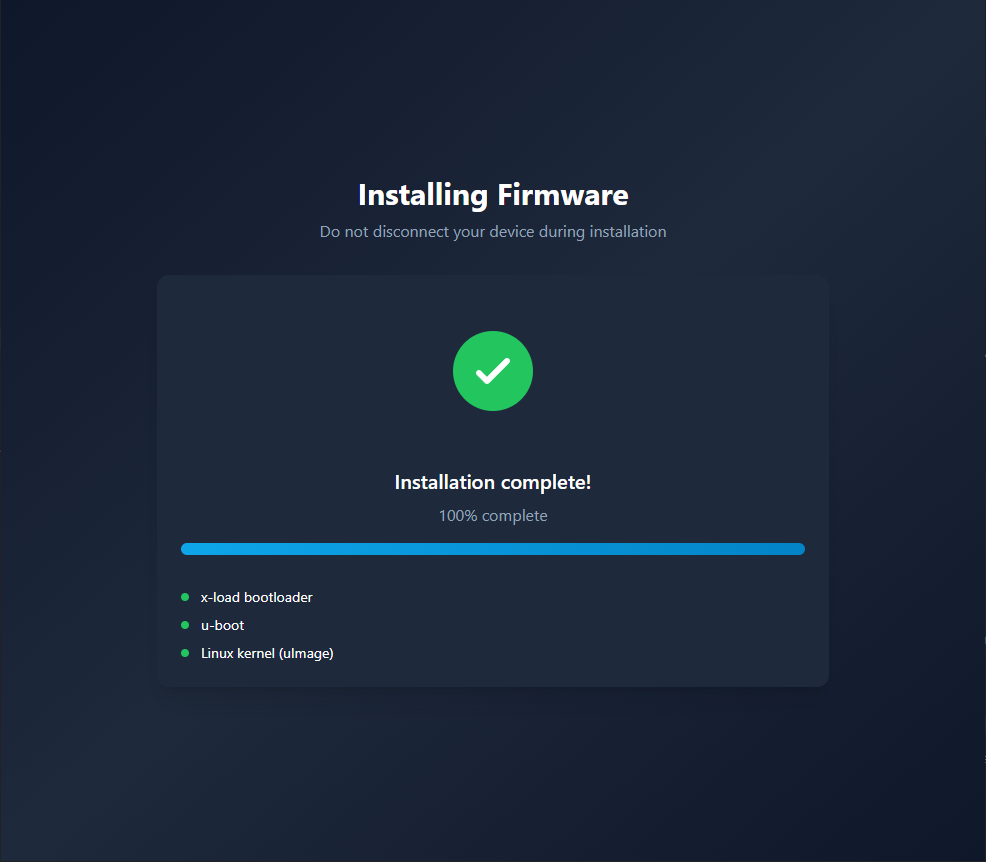
Firmware flashed successfully — The bootloader and kernel have been written to the device. Keep the USB cable connected — the device will now begin booting into the new firmware.If flashing failed mid-way: Unplug and repeat the back plate sequence, then re-run the installer. A partial flash will not permanently damage the device — the DFU bootloader is always recoverable.
Step 2: Wait for Boot
Keep the device plugged in via USB and wait for it to complete its boot sequence — this may take 3–4 minutes. When fully booted, you should see the default Nest temperature screen. Do not disconnect or power off the device during this time.Step 3: Complete the Wizard
Once the device has booted, the installer wizard takes over automatically.Make sure your NLE server is running before proceeding — the wizard will need to reach it to configure the thermostat.
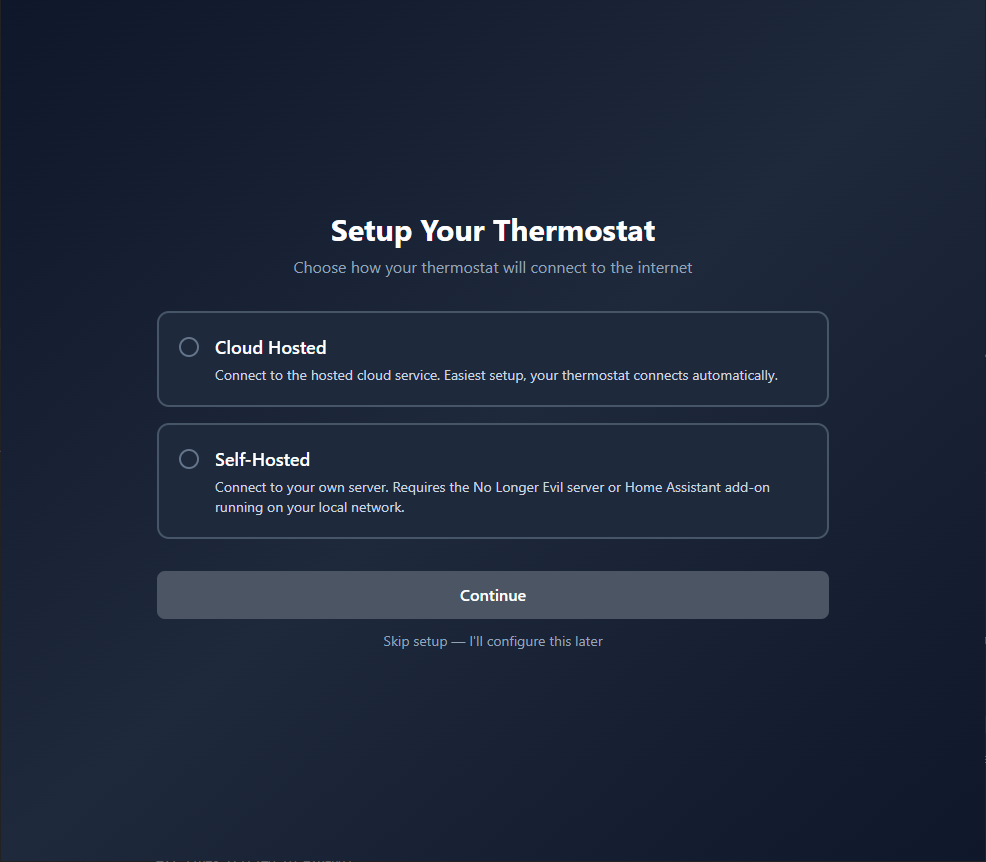
Choose hosting mode — Select Self-Hosted. If you haven’t started your NLE server yet, go back and complete Part 1 first before continuing.
| Deployment | Server address to enter |
|---|---|
| Standalone Docker | http://[YOUR-SERVER-IP]:8000 |
| HA Add-on | http://[YOUR-HA-IP]:9543 |
| Python direct | http://[YOUR-SERVER-IP]:8000 (or whichever port you configured) |
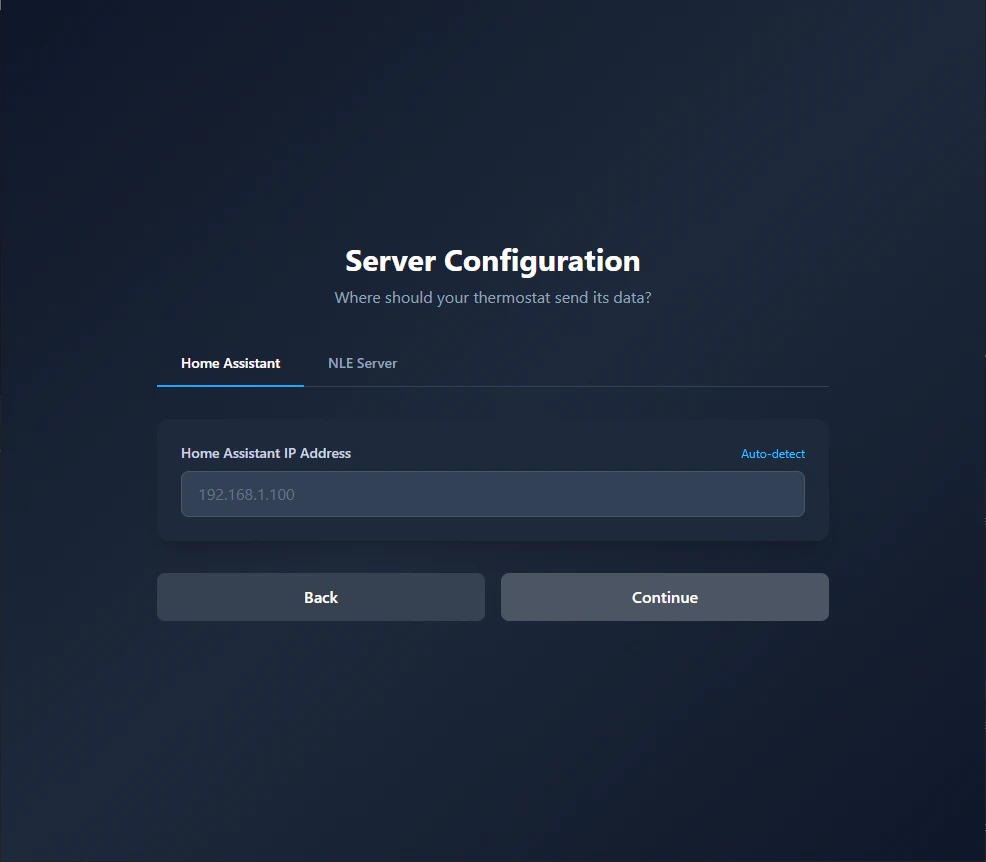
Server configuration — Enter your server address and click Continue. If the server was auto-detected on your LAN, it will appear here automatically — just confirm it’s correct.If the server isn’t detected: Make sure the server is running (
docker ps or check your HA add-on), that your computer is on the same network, and that API_ORIGIN is set to a LAN IP (not localhost or a hostname).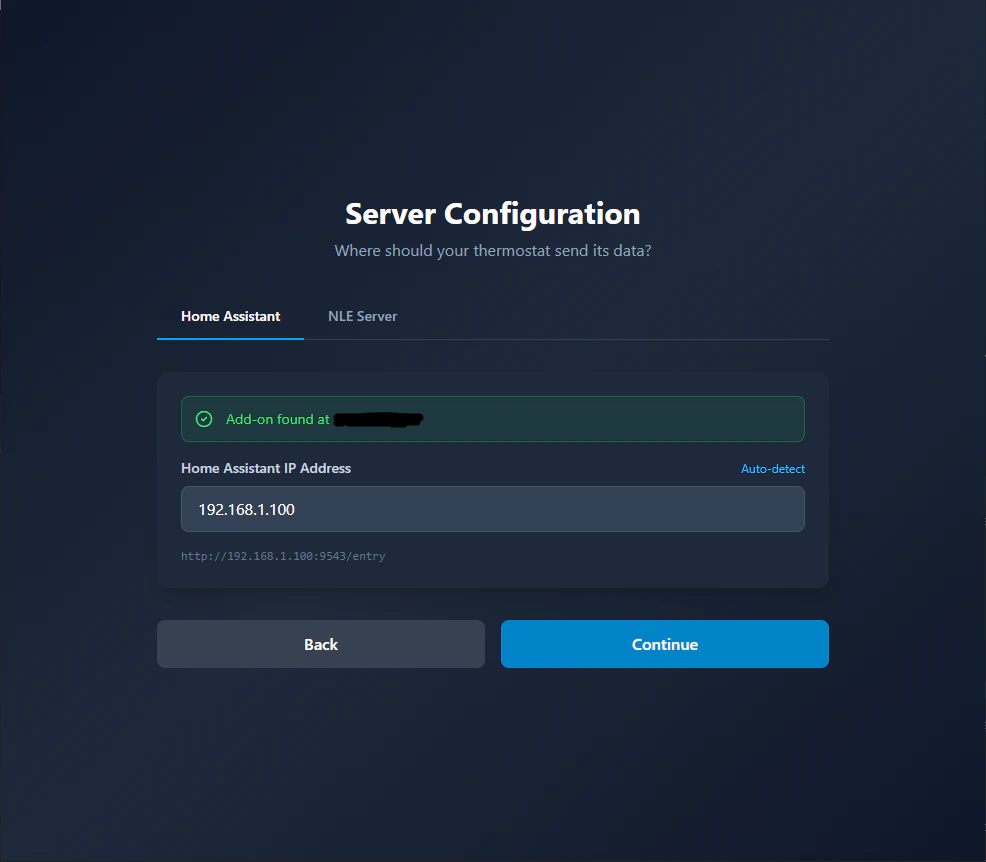
Home Assistant auto-detected — If the installer finds a running NLE add-on on your network, it will show it here. Confirm the address matches your HA machine’s IP on port
9543.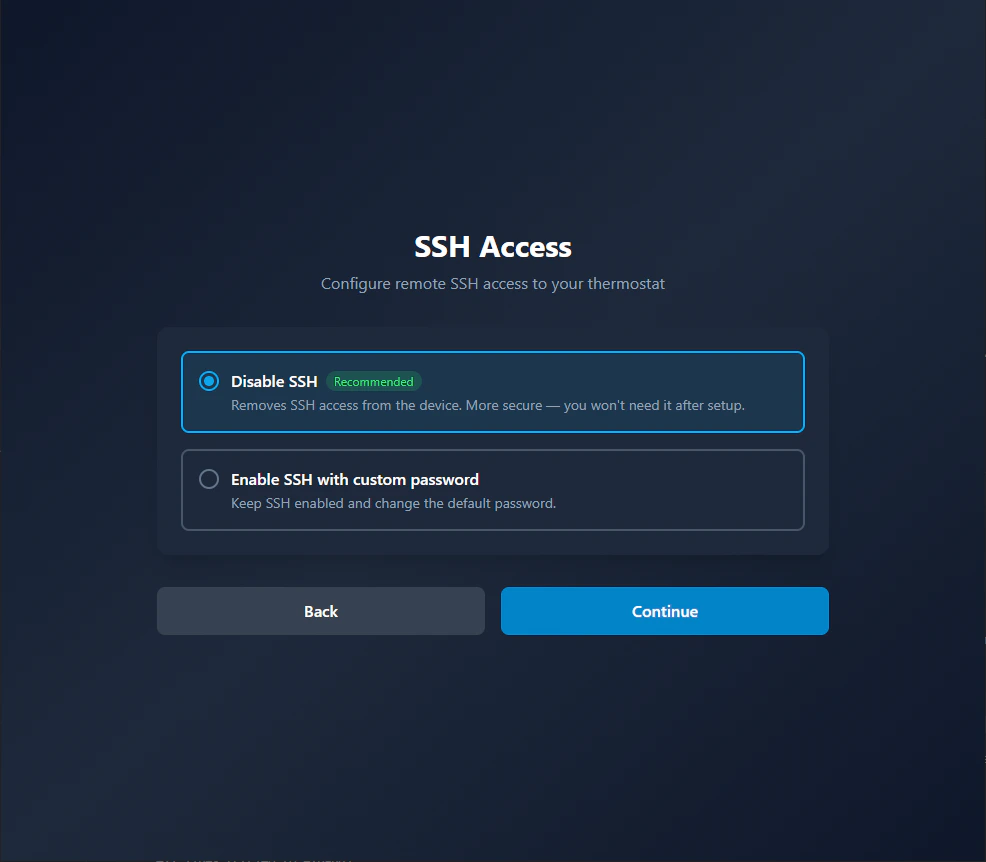
SSH connection — The wizard connects to the thermostat over SSH to configure it. The device must still be connected via USB and should have finished booting.If SSH fails: Make sure the USB cable is still plugged in and the device shows the Nest temperature screen. Unplug and replug the USB cable, wait 30 seconds, and click Retry.
SSH Password Setup (advanced)
SSH Password Setup (advanced)
If you choose to keep SSH enabled, this screen lets you change the default SSH password from
nolongerevil to a password of your choice. You can SSH into the device at any time with ssh root@[THERMOSTAT-IP].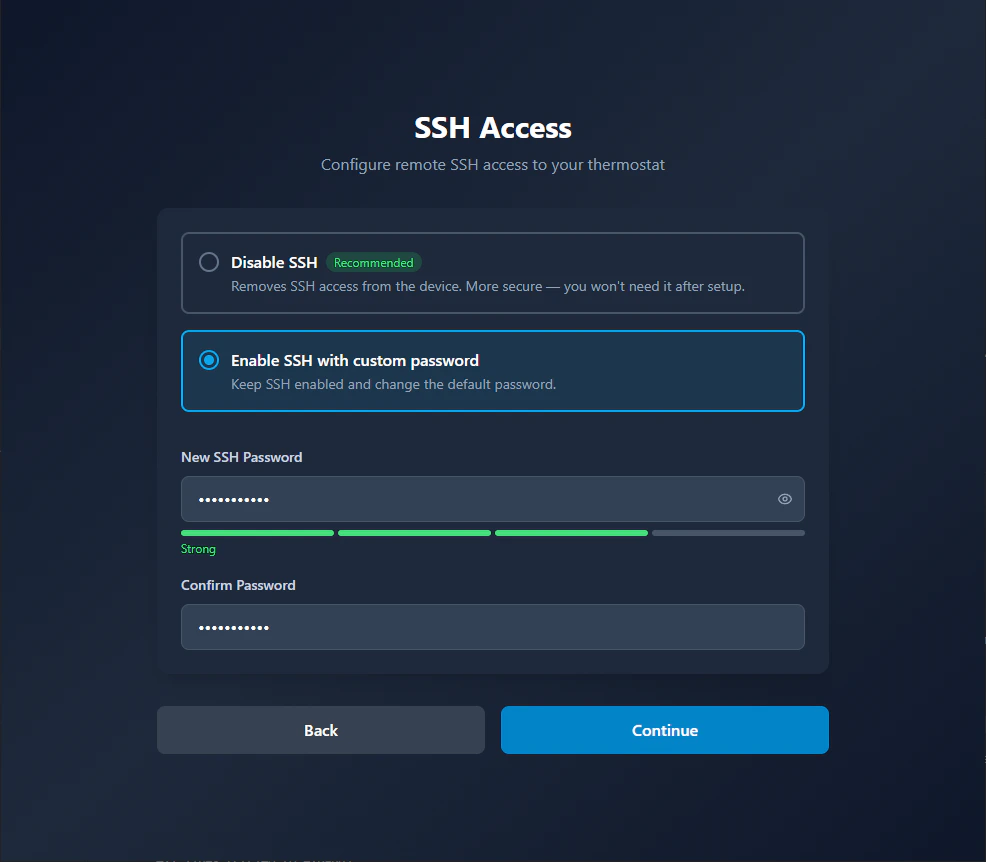
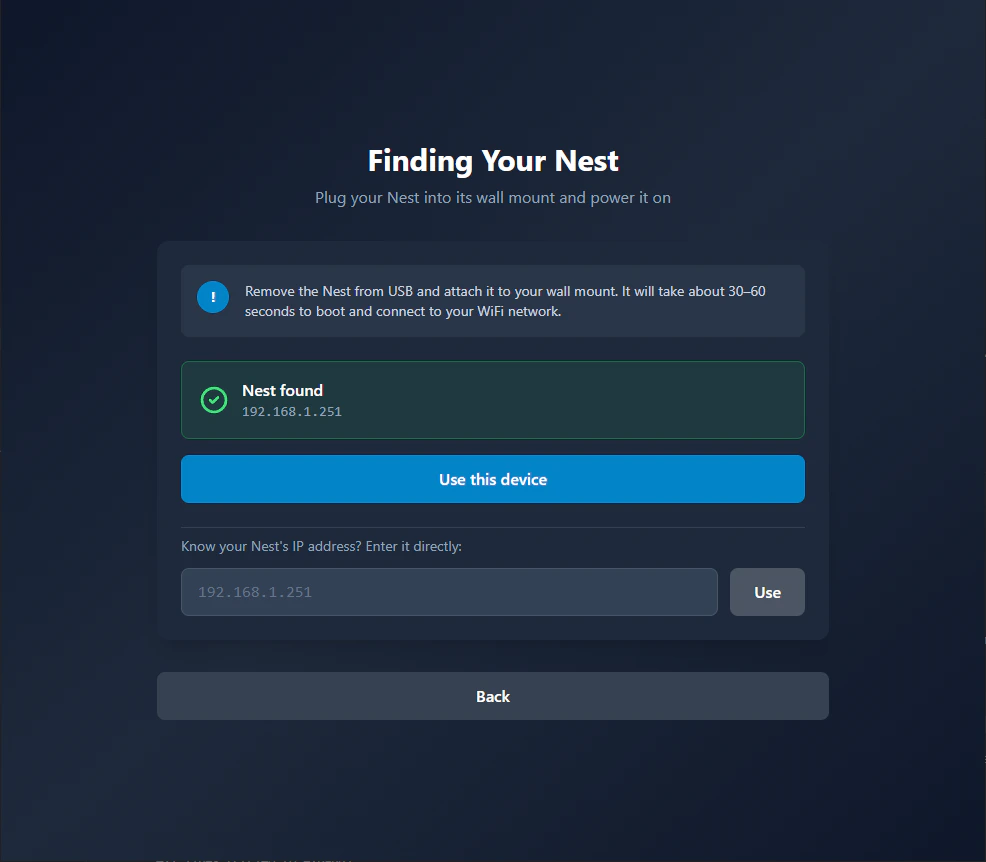
Finding your Nest on the network — The wizard scans your local network to locate the thermostat after it connects to WiFi. The device needs to be on the same network as your server.If the Nest isn’t found: Check the WiFi credentials on the Nest device itself and confirm it shows as connected. Alternatively, if you know the thermostat’s IP address, you can enter it manually and click Use.
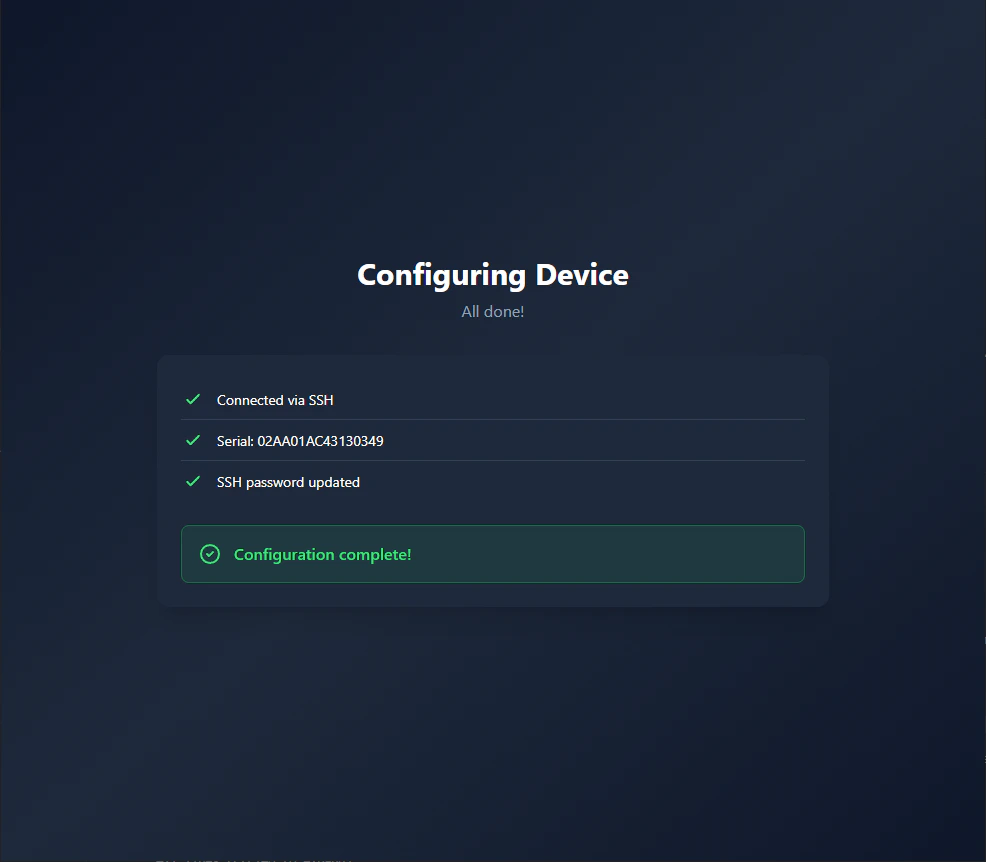
Configuring device — The wizard is writing your self-hosted server URL to the thermostat. Do not unplug or power off the device during this step.If provisioning fails: Verify your server is still running and reachable, then retry. If it fails repeatedly, see the Troubleshooting guide.
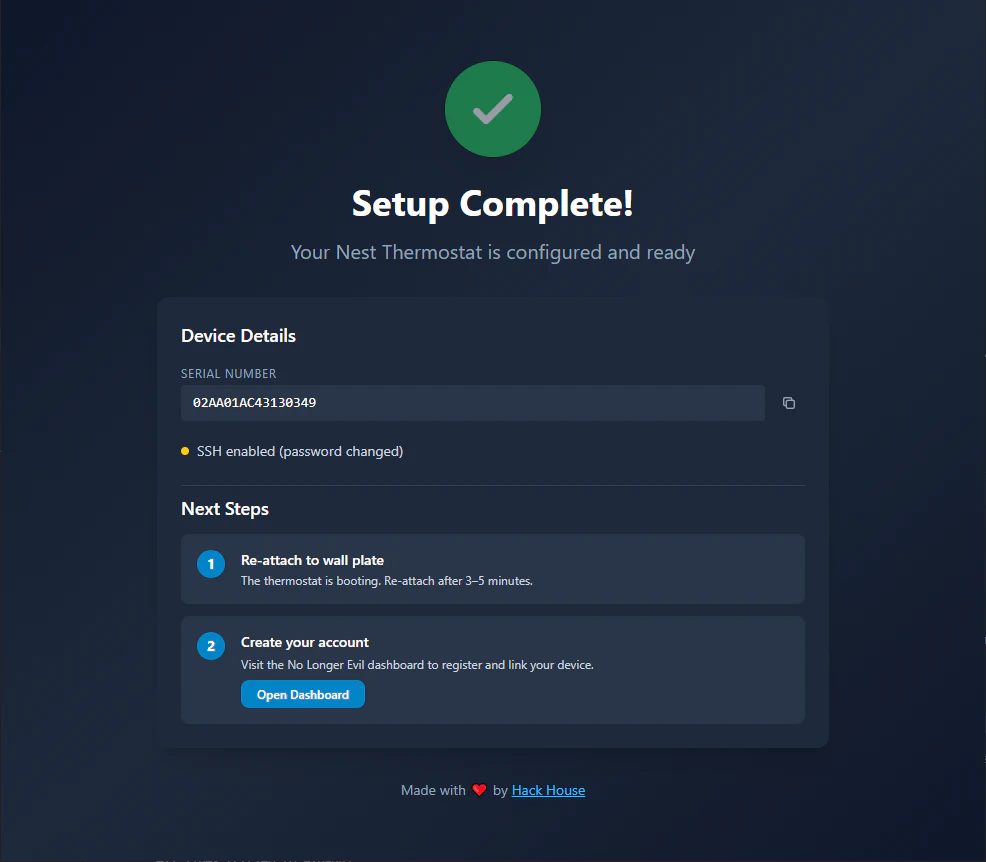
Setup complete — Verify the Server URL shown matches your self-hosted server address. If it shows the No Longer Evil cloud URL instead, the server was not detected correctly — see the Troubleshooting guide.
The thermostat only sends its complete state (temperature, mode, schedule) to the server during a fresh boot. After the wizard finishes, reboot the device from the installer or by holding the display for 10 seconds. Without a reboot, the dashboard may show the device as connected but with no data.
Managing Your Server
Start/Stop Containers
View running containers:View Logs
API Server logs:Update to Latest Version
Home Assistant — Web UI
The NLE server includes a built-in web dashboard you can access directly from Home Assistant. Open the NoLongerEvil HomeAssistant add-on in Settings → Add-ons, or click NLE Thermostats in the sidebar if you enabled the Show in sidebar option. Then click Open Web UI. The Web UI lets you:- View all connected thermostats
- Add new thermostats or scan for devices on your network
- Modify thermostat controls directly — useful if you prefer not to use the Home Assistant interface
Configure Networking (For Remote Access — Optional)
This section is only needed if you want to access your thermostat from outside your local network (over the internet). For standard home LAN use, skip this section — the thermostat connects to your server directly on the local network.
Remote access setup (port forwarding, DDNS, SSL)
Remote access setup (port forwarding, DDNS, SSL)
Port Forwarding
Configure your router to forward these ports to your server:
- Port 8000 - Thermostat Communication API
- Port 8082 - Control API / Dashboard
DNS/DDNS Setup
Set up a domain name or Dynamic DNS (DDNS) service to point to your public IP:
- Use a service like DuckDNS, No-IP, or your own domain
- Configure it to update automatically if your IP changes
Next Steps
Troubleshooting
Solutions to common self-hosting issues
API Reference
Learn about the API endpoints